
Description
Version/Model Info
- All IOS devices
Affected Platforms/Devices
- All current IOS devices can customize and change wallpapers
Troubleshooting
1. Navigate to the settings tab
2. Scroll down and tap on the wallpaper tab
3. Tap on Add New Wallpaper tab
-Once inside this tab, select custom photos from the gallery or choose from a wide variety of wallpaper themes, such as colors, weather, and astronomy
4. Tap on the add+ tab in the right corner
5. Tap on set as wallpaper pair
-Exit the settings menu and enjoy your new wallpaper
Change the wallpaper on iPhone
On iPhone, you can change the wallpaper on the Lock Screen and the Home Screen. You can set your wallpaper in Settings or through the wallpaper gallery from your Lock Screen. See Create a custom iPhone Lock Screen.
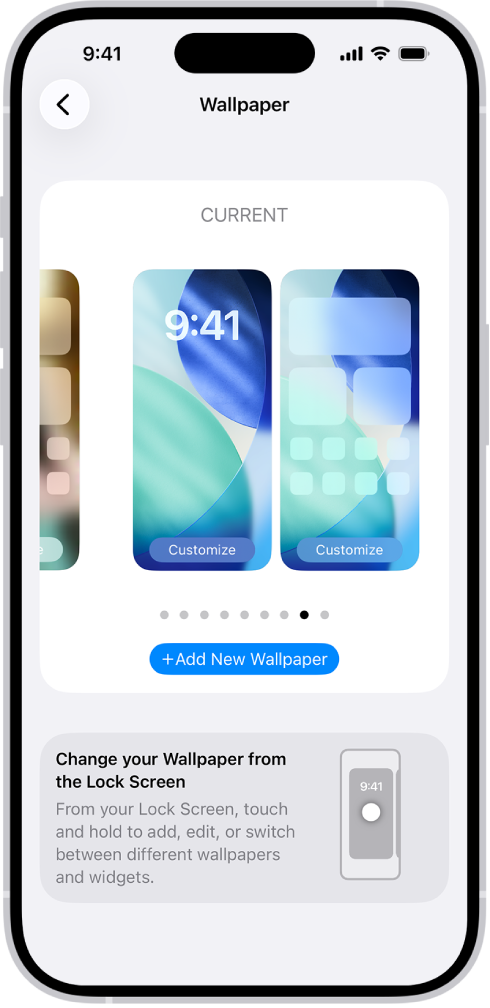
- Go to the Settings app
 on your iPhone.
 - Tap Wallpaper, then tap Add New Wallpaper.
- Tap one of the wallpaper options, then make additional changes to the Lock Screen.
- Tap Add, then do one of the following:
- Choose to use the wallpaper on both the Lock Screen and Home Screen: Tap Set as Wallpaper Pair.
-
Make changes to the Home Screen: Tap Customize Home Screen. Tap a color to change the wallpaper color, tap
 to use a custom photo, or select Blur to blur the wallpaper so the apps stand out.
Change the wallpaper on iPad
On iPad, choose an image or photo as wallpaper for the Lock Screen or Home Screen. You can choose from dynamic and still images.
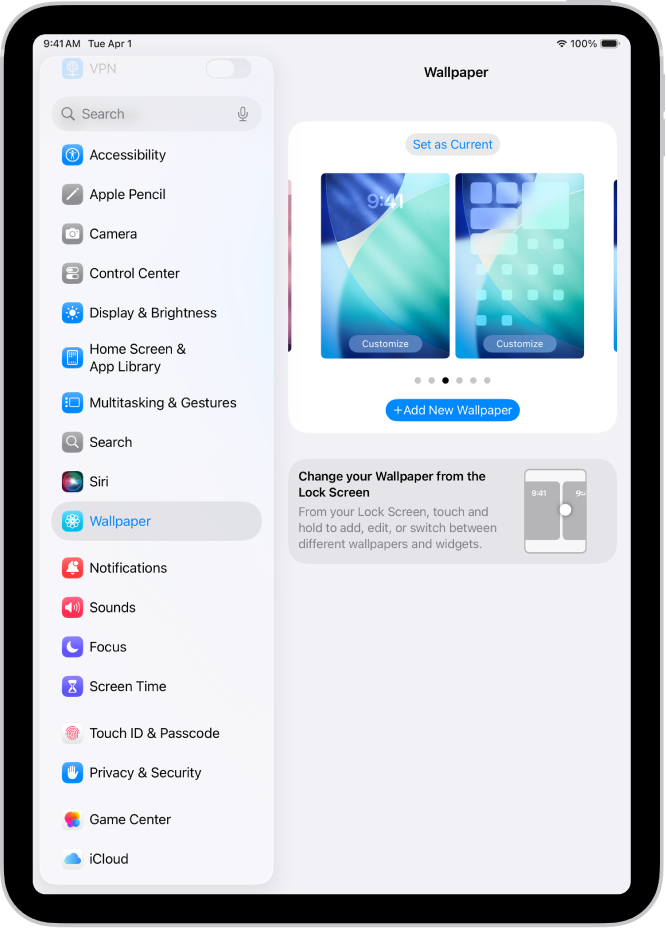
- Go to Settings
 > Wallpaper > Add New Wallpaper.
 - Do any of the following:
- Tap a button at the top of the wallpaper gallery—for example, Photos, Photo Shuffle, Live Photo, and so on—to design your wallpaper with a photo, an emoji pattern, a picture of your local weather, and more.
- Choose wallpaper from one of the featured sets (Collections, Astronomy, Weather, and so on).
- Tap one of the wallpaper options, then make additional changes to the Lock Screen.
- Tap Add, then choose one of the following:
- Choose whether to use the wallpaper on both the Lock Screen and Home Screen: Tap Set as Wallpaper Pair.
-
Make further changes to the Home Screen: Tap Customize Home Screen. Tap a color to change the wallpaper color, tap
 to use a custom photo, or select Blur to blur the wallpaper so the apps stand out.
Tip: You can set your wallpaper to change automatically by creating a personal automation in the Shortcuts app. Set a schedule for your automation, then add the Set Wallpaper action to your automation. (See the Shortcuts User Guide).
Tags
IOS, Wallpaper,Ipad,Iphone,
Additional Links
https://support.apple.com/guide/ipad/change-the-wallpaper-ipad997d908e/ipados
https://support.apple.com/guide/iphone/change-the-wallpaper-iph3d267104/ios
Comments
0 comments
Please sign in to leave a comment.