
Description
There is a quick and easy way to switch from your Android device to your new iPhone with synced contacts and pictures.
INTRO
First, you're going to want to back up/sync your contacts and pictures on an Android device.
Back up & sync device contacts
Back up & sync device contacts by saving them as Google contacts:
-
On your Android phone or tablet, open the "Settings" app.
-
Tap Google
Settings for Google Apps Google Contacts sync. Also, sync device contacts
-
Turn on Automatically back up & sync device contacts.
-
Pick the account you’d like your contacts to be saved in. Your contacts can only be automatically saved to one Google Account.
 Settings for Google Apps Google Contacts sync. Also, sync device contacts
 Back up photos & videos
Turn backup on or off.
Important: It can take a while to complete a backup, depending on your internet connection, the size of your uploads, and other conditions.
- On your Android phone or tablet, open the Google Photos app
.
- Sign in to your Google Account.
- At the top right, tap your Profile picture or Initial.
- Tap Photos settings
Backup.
- Turn Backup on or off.
 .
.
Once this is complete, you will have to download an application to your Android device. The Application is called MOVE TO IOS.
Before you begin
- On your Android device, make sure that Wi‑Fi is turned on.
- Plug your new iOS device and your Android device into power.
- Ensure that the content you're moving, including what's on your external Micro SD card, will fit on your new iOS device.
- If you want to transfer your Chrome bookmarks, update them to the latest version of Chrome on your Android device.

Get started on your Apple device.
Turn on your new Apple device and place it near your Android device.
On your Apple device, follow the onscreen setup instructions.
On the Quick Start screen, tap Set Up Without Another [Apple] Device, then follow the onscreen instructions. You might be asked to activate your eSIM.
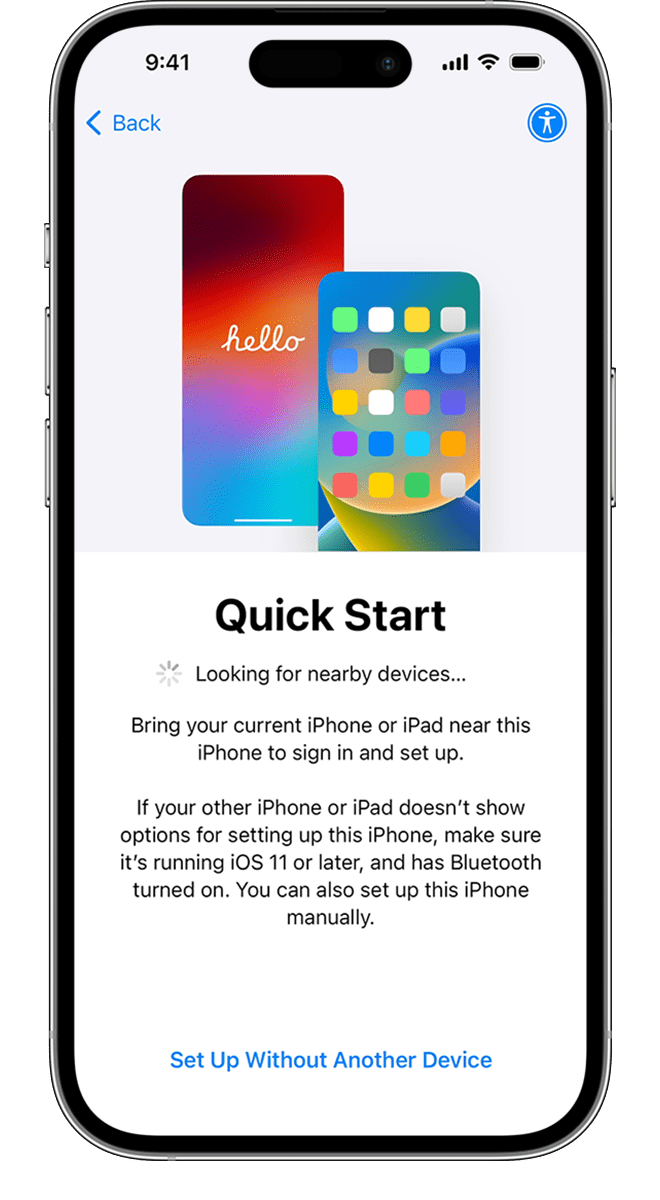
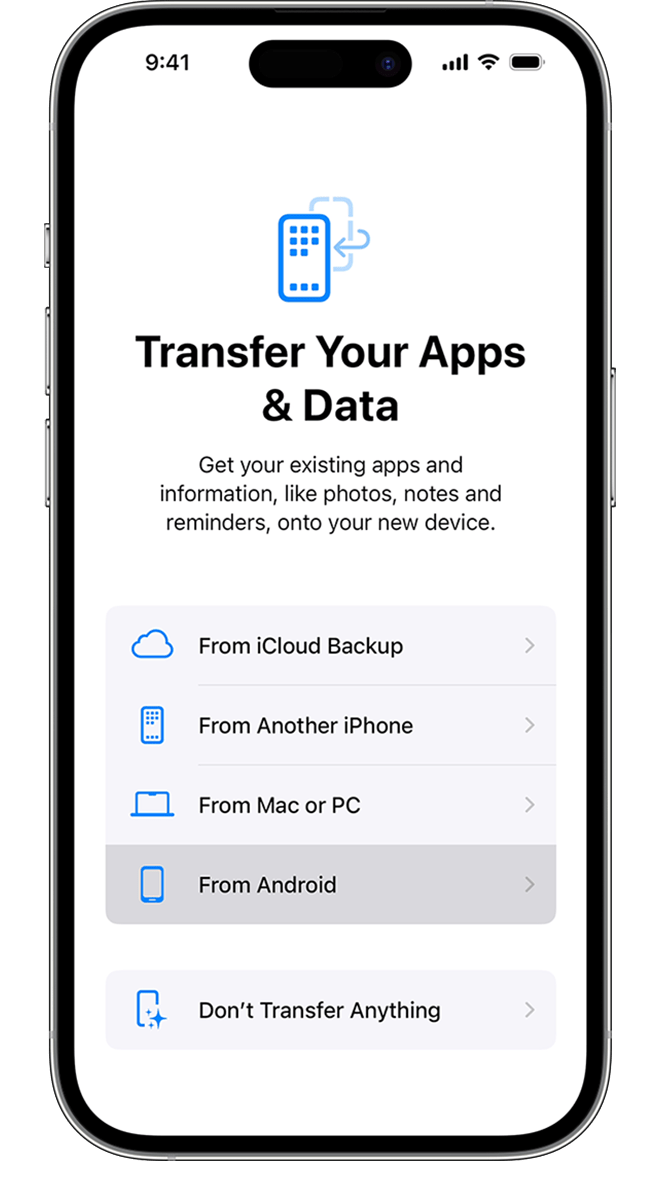
Tap Move Data from Android
Look for the Transfer Your Apps & Data screen. Then tap From Android. (If you have already finished the setup, you need to erase your iOS device and start over. If you don't want to erase, transfer your content manually.)
Open and set up the Move to iOS app.
On your Android device, open the Move to iOS app. If you don't have the Move to iOS app, you can tap the QR code button on your new iOS device and scan the QR code using the camera on your Android device to open the Google Play Store.
To start using the Move to iOS app:
- Tap Continue.
- Read the terms and conditions that appear, and tap Agree to continue.
- Tap Automatically Send or Don't Send to choose how to share app data with Apple.
- Tap Continue and enable Location permissions if necessary.
- Tap Continue and enable Notification permissions if necessary.
Wait for a code.
On your iOS device, tap Continue when you see the Move from Android screen. Then wait for a ten-digit or six-digit code to appear. If your Android device shows an alert that you have a weak internet connection, you can ignore the alert.
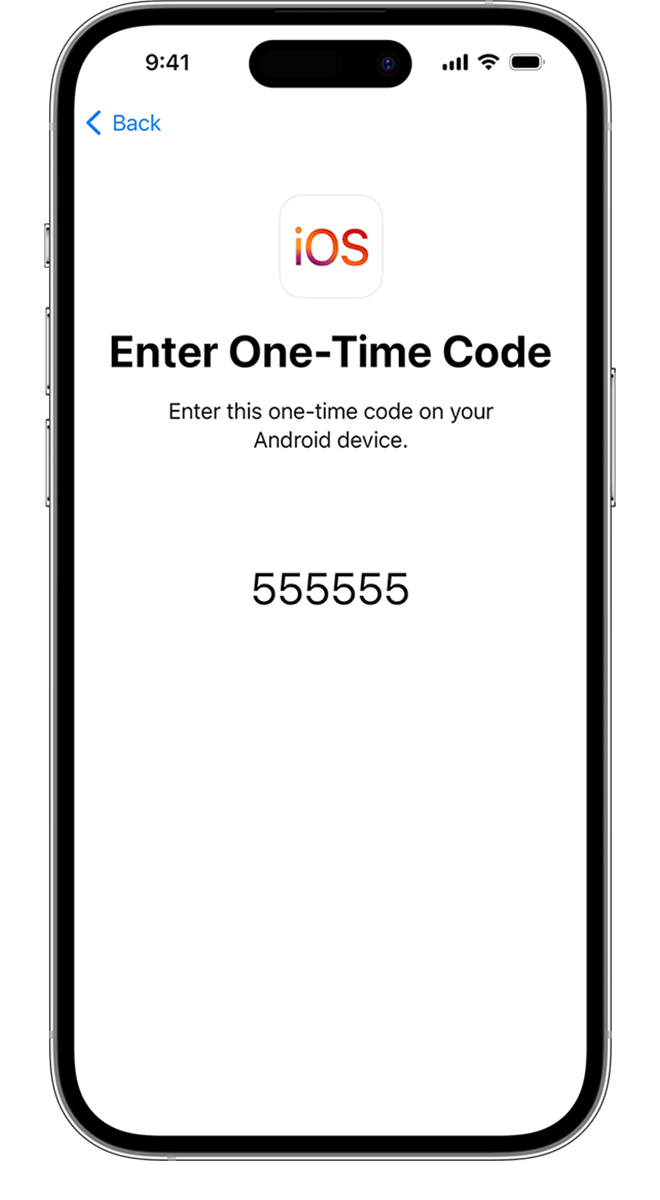
Use the code
Enter the code on your Android device.
Connect to a temporary Wi-Fi network.
Your iOS device will create a temporary Wi-Fi network. When asked, tap Connect to join that network on your Android device. Then wait for the Transfer Data screen to appear.
Choose your content and wait
On your Android device, select the content that you want to transfer and tap Continue. Then—even if your Android device shows that the process is complete—leave both devices alone until the loading bar that appears on your iOS device finishes. Keep your devices near each other and plugged in to power until the transfer completes. The whole transfer can take a while, depending on how much content you're moving.
Here's what gets transferred: contacts, message history, camera photos and videos, photo albums, files and folders, accessibility settings, display settings, web bookmarks, mail accounts, WhatsApp messages and media, and calendars. If they're available on both Google Play and the App Store, some of your free apps will also transfer. After the transfer completes, you can download any free apps that were matched from the App Store.
Transfer your phone number and SIM or eSIM
As you move from your Android device, you can activate your phone number and SIM or eSIM on your iPhone. You might be directed to your carrier's website to finalize this activation.
Set up your iOS device
After the loading bar finishes on your iOS device, tap Done on your Android device. Then tap Continue on your iOS device and follow the onscreen steps to finish setup for your iOS device.
SOURCES/REFERENCES/CITATIONS:
- https://support.google.com/photos/answer/6193313?hl=en&co=GENIE.Platform%3DAndroid&oco=0#zippy=
- https://support.apple.com/en-us/HT201196
- https://support.google.com/contacts/answer/9423168?hl=en
Comments
0 comments
Please sign in to leave a comment.